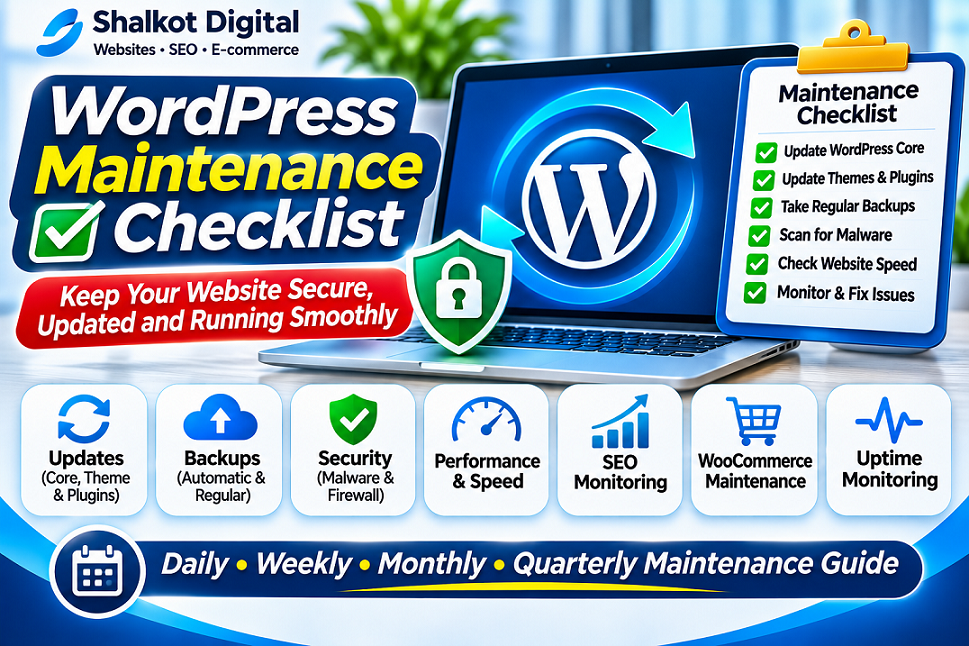
WordPress Maintenance Checklist: Keep Your Website Secure, Updated and Running Smoothly
A practical 20-point checklist with daily, weekly, monthly and quarterly tasks for business sites, blogs and WooCommerce stores. Updated November 2026.
Launching a WordPress website is only the beginning. Plugins change, software vulnerabilities are discovered, content ages, and integrations sometimes stop working. A consistent WordPress maintenance checklist reduces avoidable downtime and makes problems easier to detect before customers notice them.
This guide is intended for website owners, small businesses, and teams using WordPress, including sites built with GeneratePress and stores powered by WooCommerce. You do not need to perform every technical task yourself, but someone should own the schedule, document the changes, and verify the results. If you are planning a new site, our WordPress website cost guide also explains recurring maintenance expenses.
WordPress maintenance schedule at a glance
| Frequency | Recommended checks | Why it matters |
|---|---|---|
| Daily or automated | Uptime, backup jobs, security alerts, critical order and form emails | Detect urgent failures quickly |
| Weekly | Updates, contact forms, broken functions, error logs, backups | Reduce security and reliability risks |
| Monthly | Speed, Search Console, content, broken links, user access, database review | Keep the site usable and discoverable |
| Quarterly | Recovery drill, PHP compatibility, accessibility, plugin audit, analytics review | Validate long-term resilience |
| Before major changes | Backup, staging test, rollback plan, checkout and form testing | Limit disruption from changes |
Adjust frequency based on traffic, update volume and business criticality. A busy store may need more frequent checks than a simple brochure site.
The complete 20-point WordPress maintenance checklist
1. Confirm that backups are recoverable
A backup is useful only when it can be restored. Keep automated backups of both files and the database, store at least one copy away from the hosting account, and periodically test restoration on a staging site. Before major updates, take a fresh manual backup. For WooCommerce stores, account for orders received after a backup was created.
2. Update WordPress core carefully
Check Dashboard → Updates for new WordPress releases. Read release notes, back up the site, test major releases on staging when possible, and update during a quieter period. Afterward verify the homepage, contact forms, login, and important templates.
3. Review themes and plugins
Update active plugins and themes from trusted sources. Remove unused extensions rather than leaving them deactivated indefinitely. Confirm compatibility with your PHP and WordPress versions. Avoid installing overlapping caching, security, or SEO plugins without a clear reason.
4. Maintain PHP and hosting software
Review the PHP version and hosting notices in Hostinger hPanel. Use a currently supported PHP version compatible with your theme and plugins; test changes on staging first. Check storage usage, SSL certificate renewal, domain renewal, and backup retention.
5. Strengthen account security
Use unique passwords, enable two-factor authentication for administrators where available, and give users only the permissions they need. Remove abandoned accounts. Review the WordPress security checklist for additional practical safeguards. Avoid sharing administrator credentials with contractors; create time-limited accounts and revoke them when work ends.
6. Scan for malware and suspicious changes
Monitor unexpected admin users, unfamiliar files, redirects, and sudden traffic changes. Use a reputable security scanner or hosting security service. A scanner does not replace updates, backups, and access controls. If compromised, preserve evidence and follow a structured cleanup and credential-reset process.
7. Test forms and transactional emails
Send a test through your contact and quotation forms. Verify receipt, Reply-To behavior, spam filtering, and SMTP authentication. For WooCommerce, test order emails and payment notifications in a safe test environment. Monitor delivery failures rather than assuming a success message means an email arrived.
8. Check uptime and error logs
Use an uptime monitoring service for important sites and review server error logs for repeated 404, 500, and PHP errors. Investigate recurring incidents rather than clearing logs without understanding the cause.
9. Monitor speed and Core Web Vitals
Test representative mobile pages with PageSpeed Insights and inspect real-user Core Web Vitals in Search Console when data is available. Compare performance trends, not just one synthetic score. Review image sizes, caching, scripts, ad placements, and third-party widgets. For a step-by-step approach, see our WordPress speed optimization guide.
10. Review caching and CDN behavior
Check that caching does not break logged-in pages, forms, carts, checkout, or personalized content. Purge caches after major updates. For stores, verify cart and checkout exclusions and test with an incognito browser.
11. Optimize the database cautiously
Clean expired transients, spam comments, and unnecessary revisions when appropriate. Back up the database first. Avoid blindly deleting options, scheduled actions, or WooCommerce records; these may be needed by active extensions.
12. Check indexing and search visibility
Open Google Search Console to review Pages, Sitemaps, and Performance reports. Investigate new noindex tags, unexpected redirects, server errors, canonical changes, and drops affecting important pages. XML sitemap inclusion does not guarantee Google indexing. Our WordPress indexing troubleshooting guide explains common Search Console statuses.
13. Audit broken links and redirects
Check priority pages for broken internal links, outdated service URLs, and redirect chains. Use permanent redirects only when content has actually moved. For stores, the WooCommerce SEO checklist covers product and category URL hygiene. Update internal links to the final destination instead of relying on chains.
14. Review content accuracy and freshness
Update outdated pricing, screenshots, software instructions, and broken external references. Add useful links to related services and guides. Avoid changing publication dates without substantive revisions.
15. Test mobile navigation and accessibility
Check navigation, buttons, forms, contrast, headings, image alt text, and keyboard access on mobile and desktop. For GeneratePress, review any custom page-template CSS after theme updates.
16. Verify e-commerce functionality
For WooCommerce, test product variations, inventory, coupon logic, shipping zones, tax settings, checkout, payment gateways, and order confirmation. Use sandbox payments where supported and never place unnecessary live test orders.
17. Check analytics and consent settings
Confirm that analytics and conversion events still fire as expected after theme or plugin changes. Review cookie consent behavior where required. Avoid installing duplicate tracking tags through both Site Kit and a separate plugin.
18. Review AdSense placement and policy compliance
Inspect Auto Ads on mobile and desktop. Ensure advertisements do not obscure content or interfere with navigation and forms. Make placement changes in AdSense when the ad is generated by Auto Ads, rather than hiding it through fragile CSS.
19. Document changes and ownership
Keep a short change log of updates, backups, credentials held by the business, licenses, and service renewals. Store credentials in a password manager, not a public document. Record who made a change and how to roll it back.
20. Schedule periodic recovery drills
At least occasionally, restore a recent backup to staging, verify key functions, and document recovery steps. For business-critical sites, set a recovery-time goal and confirm that the backup frequency matches how much recent data you can afford to lose.
How to update WordPress safely: a practical workflow
- Record the current state. Note WordPress, PHP, theme and critical plugin versions.
- Create a fresh backup. Include files and database; confirm where it is stored.
- Test on staging. Especially for major versions, WooCommerce, payment integrations or custom templates.
- Update in small batches. This makes it easier to identify the source of a problem.
- Verify key journeys. Check homepage, menus, mobile layout, contact form, login, search, and checkout if applicable.
- Monitor after deployment. Check errors, customer reports, and performance.
- Roll back if needed. Use the documented restoration process rather than making random changes on the live site.
Maintenance priorities for different WordPress sites
| Site type | Highest priorities | Additional checks |
|---|---|---|
| Business website | Contact form, uptime, security, backups | Service links, lead notifications, SEO pages |
| Content / AdSense website | Indexing, content freshness, page speed | Ad placements, analytics, internal links |
| WooCommerce store | Checkout, payments, inventory, order emails | Shipping, tax, coupons, cart caching |
| Online tools website | Calculator accuracy, browser compatibility, uptime | JavaScript errors, mobile inputs, result downloads |
For example, a site like KHeRi Footwear needs checkout and product-flow checks, while the Shalkot Tools directory needs functional testing of calculators after code changes.
Common maintenance mistakes to avoid
- Updating many plugins at once without a backup or test plan.
- Assuming a backup exists without testing a restoration.
- Ignoring PHP errors because the homepage still loads.
- Giving contractors permanent administrator access.
- Running multiple caching or security plugins that conflict.
- Optimizing the database without understanding which tables are in use.
- Judging performance only by a single PageSpeed score.
- Forgetting to test emails and forms after changing SMTP settings.
Useful WordPress maintenance tools and official resources
Start with the built-in WordPress Site Health screen under Tools → Site Health. Use PageSpeed Insights to investigate loading performance and Google Search Console to review search visibility. Consult the WordPress documentation for software maintenance guidance and the WooCommerce documentation for store-specific workflows.
Related Shalkot Digital guides: How to Speed Up a WordPress Website, Why Your WordPress Site Is Not Showing on Google, and WooCommerce SEO Checklist.
More helpful Shalkot Digital guides
For troubleshooting after updates, read Common WordPress Errors and Fixes. If you are hiring help to manage your site, use our guide to choosing a WordPress developer.
Frequently asked questions
How often should I update WordPress?
Review updates at least weekly, and apply important security fixes promptly after checking compatibility and backups. Major releases deserve staging tests when feasible.
Do I need a WordPress maintenance plugin?
Not necessarily. Plugins can help with backups, monitoring, or security, but hosting tools and a documented manual process may cover many needs. Avoid installing tools that duplicate existing functions.
Can automatic updates break a website?
Yes. Most updates work normally, but compatibility problems can occur. Reliable backups, staging tests for critical components, and post-update checks reduce risk.
What should a WordPress maintenance plan include?
At minimum: backups, updates, security checks, uptime monitoring, form testing, performance checks, and a recovery plan. Stores also need payment and order-flow testing.
Does website maintenance improve SEO?
Maintenance can support SEO by keeping pages accessible, fast, indexable, and accurate. It does not guarantee rankings or traffic growth.
How much does WordPress maintenance cost?
Costs vary by hosting, plugin licenses, complexity, update frequency, and service level. A small brochure site and a high-volume WooCommerce store have very different needs.
What should I do before updating WooCommerce?
Back up the database and files, review compatibility, test on staging, and verify checkout, payment, shipping, tax, and order emails afterward.
Need help maintaining your WordPress website?
Shalkot Digital can discuss WordPress development, technical SEO and website improvement projects. Share your current website and the issues you want to solve.
Request a Project QuoteExplore WordPress ServicesRelated services: SEO Services · WooCommerce Development · Our Portfolio